
How to Make a Football Game in Python: 5-Step Pygame Guide
Build a 2D football game in Python with Pygame. We cover pitch rendering, player sprites, movement logic, ball physics, and goal detection from scratch — no game-engine experience needed.
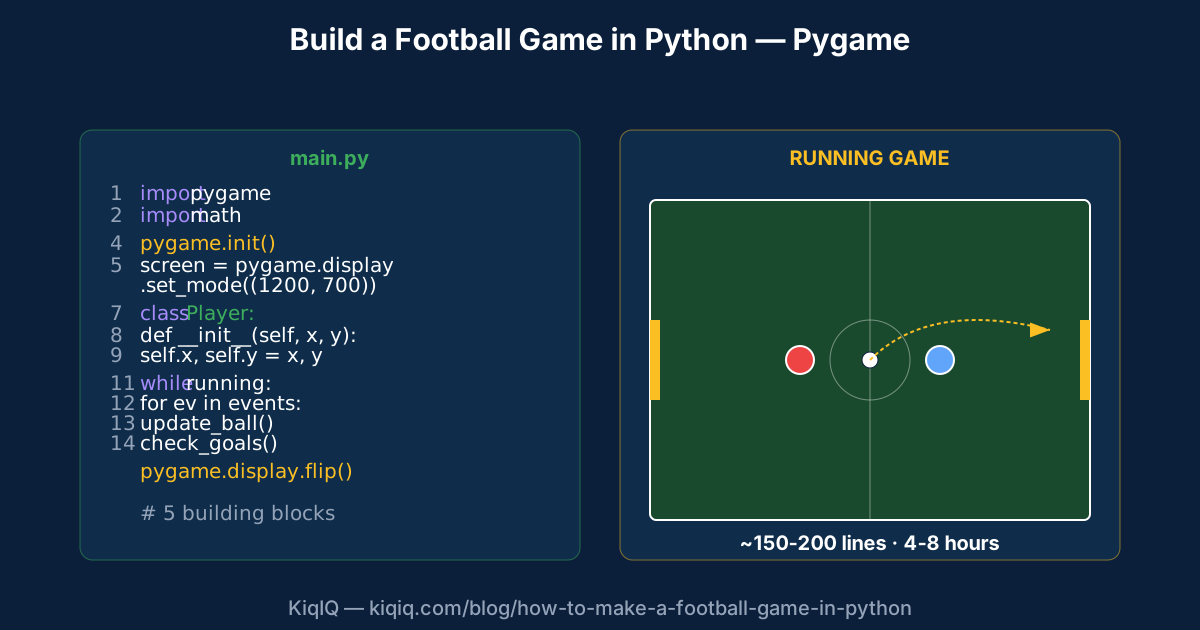 Tap to enlarge
Building a 2D football game in Python is a tractable beginner-to-intermediate project using Pygame, the standard Python library for 2D games. Five building blocks: a rendered pitch, player sprites with input handling, ball physics, collision detection, and goal/scoring logic. This guide walks each step with working code patterns; total project size is ~150-300 lines for a playable prototype.
Prerequisites
You'll need:
- Python 3.10+ installed locally.
- Pygame library installed: `pip install pygame`.
- A code editor (VS Code, PyCharm, or any text editor).
- Basic Python familiarity (variables, loops, functions, classes). No game-engine experience needed.
Pygame is the most-used Python game library — battle-tested since 2000, with extensive documentation. It's not the most powerful (Pyglet, Arcade, and Godot offer more), but it's the easiest entry point.
Step 1 — Initialise Pygame and render the pitch
Every Pygame project starts the same way: import pygame, initialise, create a screen, and run a main loop. The pitch is a green rectangle with white markings.
- `import pygame` then `pygame.init()`.
- `screen = pygame.display.set_mode((1200, 700))` — creates a 1200x700 window.
- `pygame.draw.rect(screen, (26, 74, 46), (0, 0, 1200, 700))` — fills the pitch in dark green.
- `pygame.draw.line` and `pygame.draw.circle` — draw centre line, centre circle, penalty boxes, and goals.
- A while loop with `pygame.event.get()` keeps the window responsive; close on `pygame.QUIT`.
Step 2 — Player sprites and movement
Players are class instances with position, velocity, and a draw method. Movement is keyboard-input driven via `pygame.key.get_pressed()`.
- Player class. Define `__init__` with `x`, `y`, `colour`, `radius`. Define `draw(self, screen)` that calls `pygame.draw.circle(screen, self.colour, (self.x, self.y), self.radius)`.
- Movement. In your main loop, read `keys = pygame.key.get_pressed()`. Update `player.x += SPEED if keys[pygame.K_d] else 0` and similar for W/A/S keys.
- Boundaries. Clamp `player.x` and `player.y` to the pitch dimensions so the player can't leave the field.
- Two players minimum. Player 1 uses WASD, Player 2 uses arrow keys (in a 1v1 prototype).
Step 3 — Ball physics
The ball needs position, velocity, and friction. Velocity decays over time so the ball slows down naturally.
- Ball class. Position (`x`, `y`), velocity (`vx`, `vy`), friction (`0.98` is a typical value).
- Update step. Each frame: `ball.x += ball.vx`, `ball.y += ball.vy`, then `ball.vx *= friction`, `ball.vy *= friction`.
- Wall bounces. If the ball hits a touchline, invert the y-velocity: `ball.vy = -ball.vy * BOUNCE_DAMPENING`.
- Goal lines. Use a separate check — going past the goal line triggers a goal event, not a wall bounce.
Step 4 — Collision detection (player kicks ball)
When a player's circle overlaps with the ball's circle, the ball gets kicked — its velocity is set based on the player's movement direction.
- Distance check. `dx = ball.x - player.x`, `dy = ball.y - player.y`, `dist = math.sqrt(dx*dx + dy*dy)`. If `dist < player.radius + ball.radius`, they overlap.
- Kick velocity. Set the ball's velocity proportional to the player's recent direction: `ball.vx = player.last_dx * KICK_POWER`, `ball.vy = player.last_dy * KICK_POWER`.
- Push out. After a kick, push the ball just outside the player to prevent infinite collision frames.
- Refine later. A more advanced version uses player movement vectors instead of last direction; even more advanced versions use shooting angle inputs.
Step 5 — Goal detection and scoring
When the ball crosses a goal line within the goal area, increment the score and reset.
- Goal area definition. Each goal is a rectangle at the centre of each touchline. E.g. for the right goal: `if ball.x > 1180 and 250 < ball.y < 450, goal!`
- Score variables. Keep `score_left = 0`, `score_right = 0` at the top of your main loop.
- Reset. On a goal, reset ball position to centre and zero its velocity. Optionally reset player positions too.
- Render score. Use `pygame.font.SysFont(None, 48)` to create a font, then `font.render(f"{score_left} - {score_right}", True, (255, 255, 255))` and `screen.blit(score_text, (560, 30))`.
Putting it all together
A minimum playable prototype is around 150-200 lines of Python. Common extensions:
- Add sprites. Replace circles with PNG images using `pygame.image.load`.
- Add a goalkeeper. A constrained AI-controlled player that moves only along the goal line.
- Add multiple defenders. A simple "follow ball" or "follow nearest opponent" AI.
- Add power shots. Hold a key to charge, release for a higher-velocity kick.
- Add tournament mode. Best-of-3 games, persistent scores, character selection.
Beyond the prototype
If you want to take it further:
- Pygame Zero. A simpler Pygame layer aimed at education; less boilerplate.
- Arcade. A modern Python game library with better performance and cleaner API than raw Pygame.
- Godot (with GDScript). Free game engine with Python-like scripting; significantly more powerful for full games.
- Unity (C#) or Unreal (C++/Blueprint). Industry-standard engines if you want to build a commercial-grade football game.
Frequently asked questions
- How long does it take to make a football game in Python?
- A minimum-viable 1v1 prototype with pitch, two players, ball, and goal detection takes around 4-8 hours for an intermediate Python developer using Pygame. A polished version with sprites, AI defenders, and tournament mode is more like 40-80 hours. The 5-step framework keeps the prototype tractable.
- Which Python library should I use for a football game?
- **Pygame** is the standard choice — battle-tested since 2000, extensive documentation, and well-suited to 2D games. Alternatives: **Arcade** (modern, cleaner API), **Pygame Zero** (simpler educational layer), or **Godot with GDScript** (full game engine, more powerful). For commercial-grade games, look at Unity (C#) or Unreal (C++/Blueprint).
- How do I add AI opponents to a Python football game?
- Start simple: a "follow the ball" AI where each AI defender moves toward the ball at a slightly slower speed than the player. Then add role differentiation (one defender stays in the box, others advance). Then add positional awareness (defenders stay between the ball and their goal). Pygame doesn't need a separate AI library for this — it's straightforward Python logic.
- How do I detect goals in a Pygame football game?
- Define each goal as a rectangle at the centre of each touchline. After updating the ball's position each frame, check whether the ball's coordinates fall inside the goal rectangle. If yes, increment the score, reset the ball to centre, optionally reset player positions, and continue. Render the updated score using `pygame.font.SysFont` and `screen.blit`.
References
- Pygame — Official Documentation — Pygame
- Pygame — Tags: Soccer — Pygame
- Real Python — Pygame Tutorials — Real Python
- Python Software Foundation — Python Software Foundation
Key terms in this article
Ask KiqIQ a follow-up
Get a live, data-driven answer powered by api-football + KiqIQ's Poisson model. Try one of these prompts or write your own.
Part of pillar
Data and Systems
See every article in this knowledge pillar →
Related
Reviewed by a KiqIQ editor before publication. Spotted an error? Email editor@kiqiq.com — we follow our Corrections Policy.